Flows: service home and overview
The /flows/ page is the service cockpit. A developer can find flows, start common actions, inspect runtime readiness, and jump into chat or editor.
Step 1. Open Flows
Open /flows/. The left sidebar contains the flow catalog with search and create actions. The main workspace shows the overview, metrics, quick actions, and current flow cards.
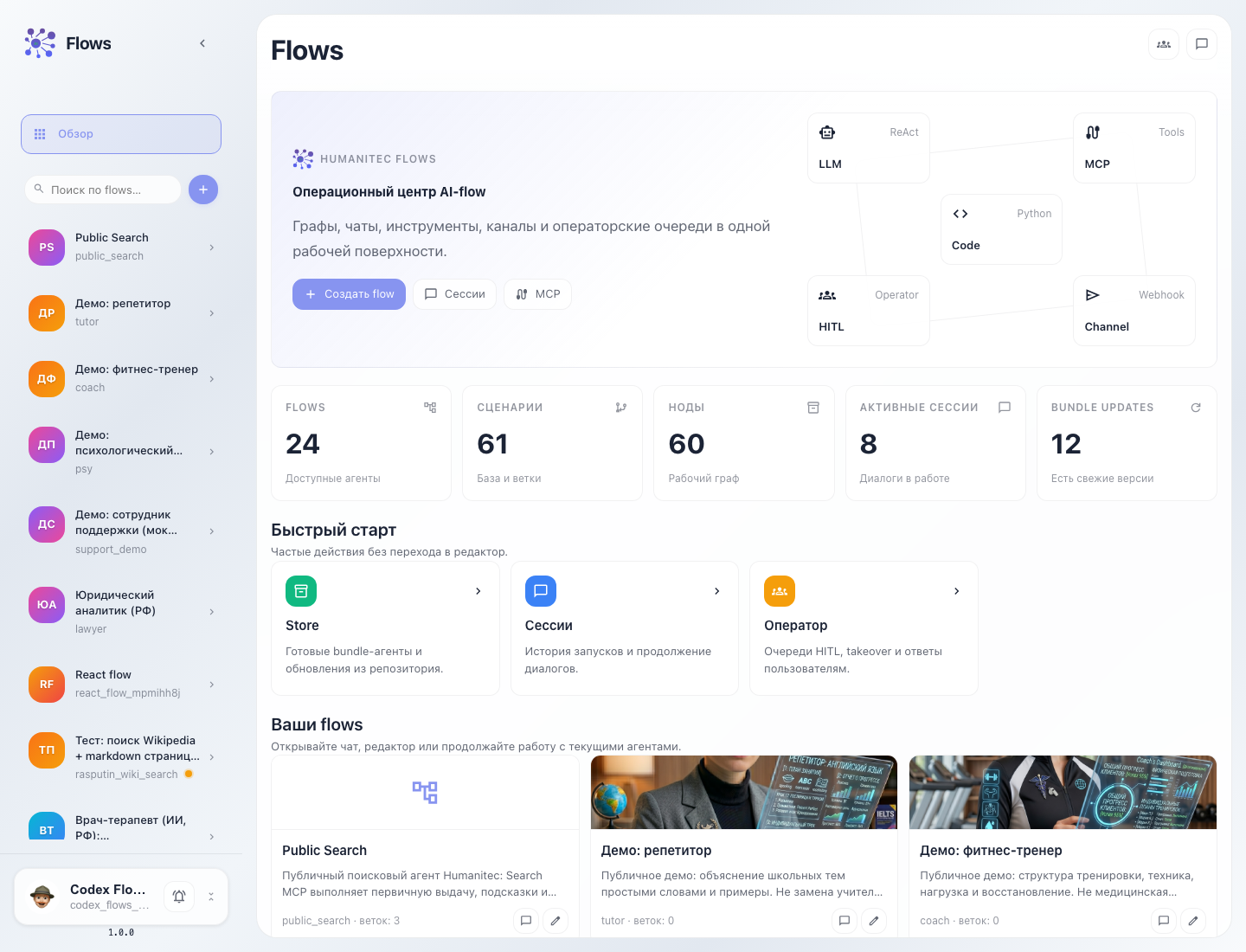
What to check on this page
- Catalog — search flows, jump to an agent, create a new flow.
- Create flow — opens the flow creation wizard or bundle installation path.
- Sessions — opens run history and lets you continue a dialog.
- MCP — opens MCP servers and synchronized tools.
- Metrics — shows flows, branches, nodes, active sessions, and bundle updates.
- Your flows — agent cards with chat and editor actions.
- Connection contours — variables, integrations, resources, and MCP surfaces.
- Live work — recent sessions, readiness counters, and operator state.
When to use this screen
Use the home page before any FLOWS work:
- Find an existing flow and open chat.
- Open the editor to change the graph.
- Create a new flow.
- Check MCP, integrations, variables, and resources.
- Continue a recent session or open the operator workspace.