Flows: running an agent in chat
The /flows/<flow_id> chat is the user-facing flow surface. Use it to verify published behavior without entering the editor: text, files, voice/TTS, traces, logs, and durable history.
Step 1. Open a flow chat
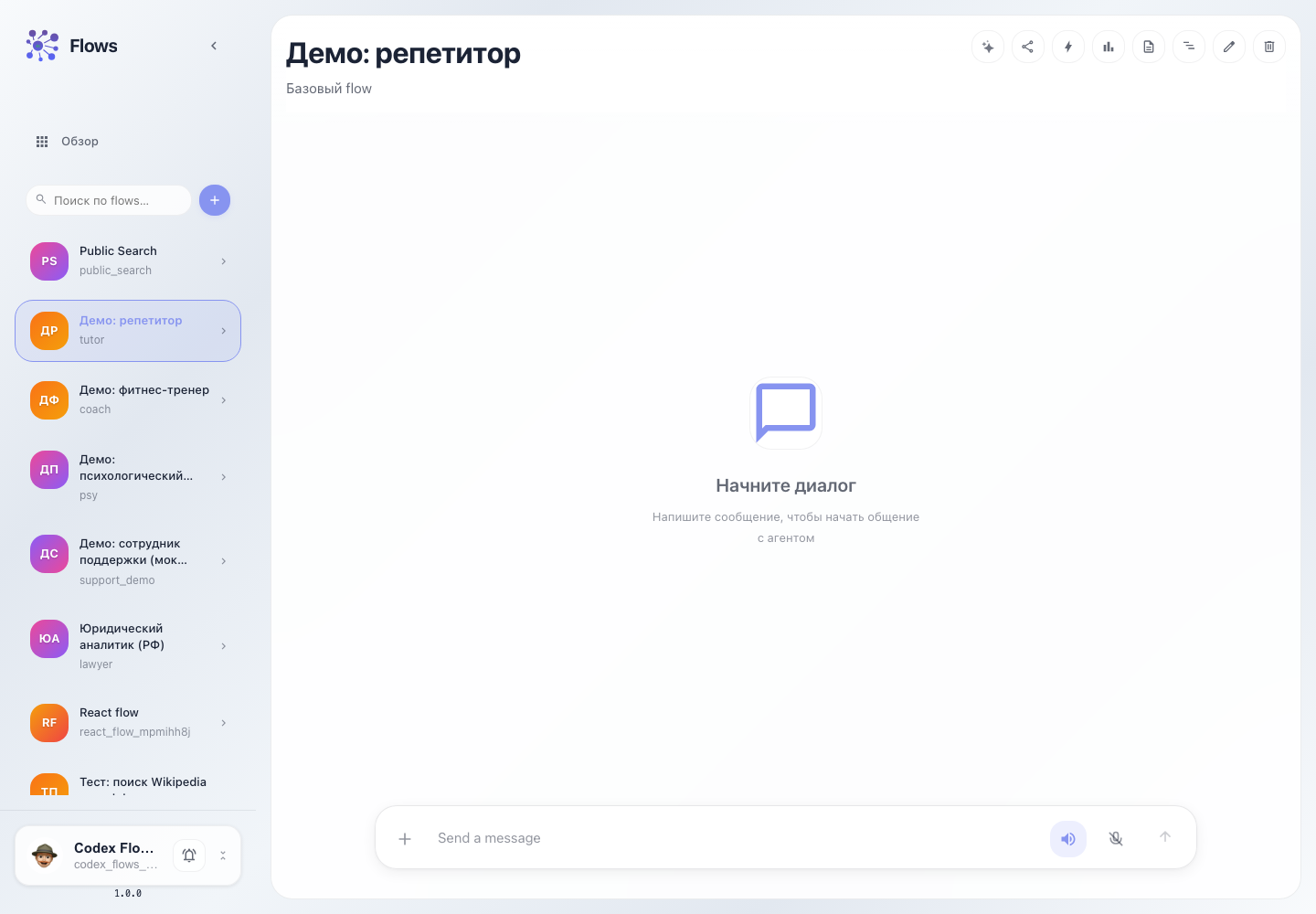
On the Flows home page, select a flow or click the chat action on a flow card. A route such as /flows/tutor opens.
Step 2. Send a message
Type a request in the composer and send it. The UI adds the user message immediately, then receives A2A/SSE response events and renders them in the transcript.
Step 3. Use header actions
The chat header exposes the main operations:
- Lara — open the AI helper for the current flow.
- Share preview — create a one-time guest preview link.
- Triggers — configure external inputs: Telegram, cron, webhook, email, Redis.
- Traces — open traces for the current session or task.
- Logs — open logs for the current session/task.
- Durable history — open the execution ledger, state projection, and fork/rewind/retry actions.
- Editor — jump to the flow graph.
- Clear — clear the local chat session.
Step 4. Work with files and voice
The + button in the composer attaches files. Voice/TTS buttons enable speech input or answer playback when the voice runtime is configured.
Scenario coverage
- user-facing flow execution;
- continuing and clearing a chat session;
- file uploads;
- observability jumps: traces, logs, durable history;
- preview-share and triggers without entering the editor;
- returning to the editor to change the graph.