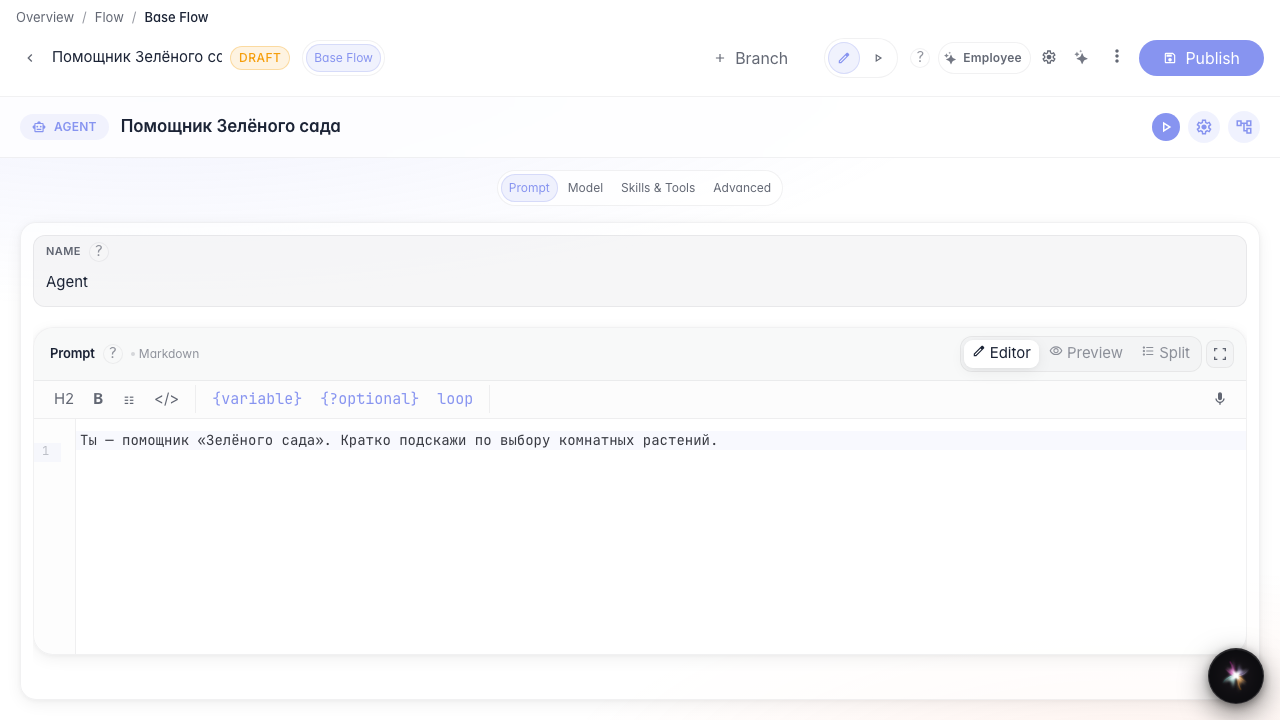
Studio and canvas: two editor modes
What for: this guide shows how Studio differs from the canvas graph and how to switch between them.
Problems it solves: after creating an agent it is unclear where the canvas went or why there are two screens for one node.
Result: one prompt change is visible both in Studio and on the canvas.
Step 1. Open the agent in Studio mode
For a single answer-node agent, switch to Studio: prompt, model, Skills and tools, advanced. A focused screen without the graph canvas.
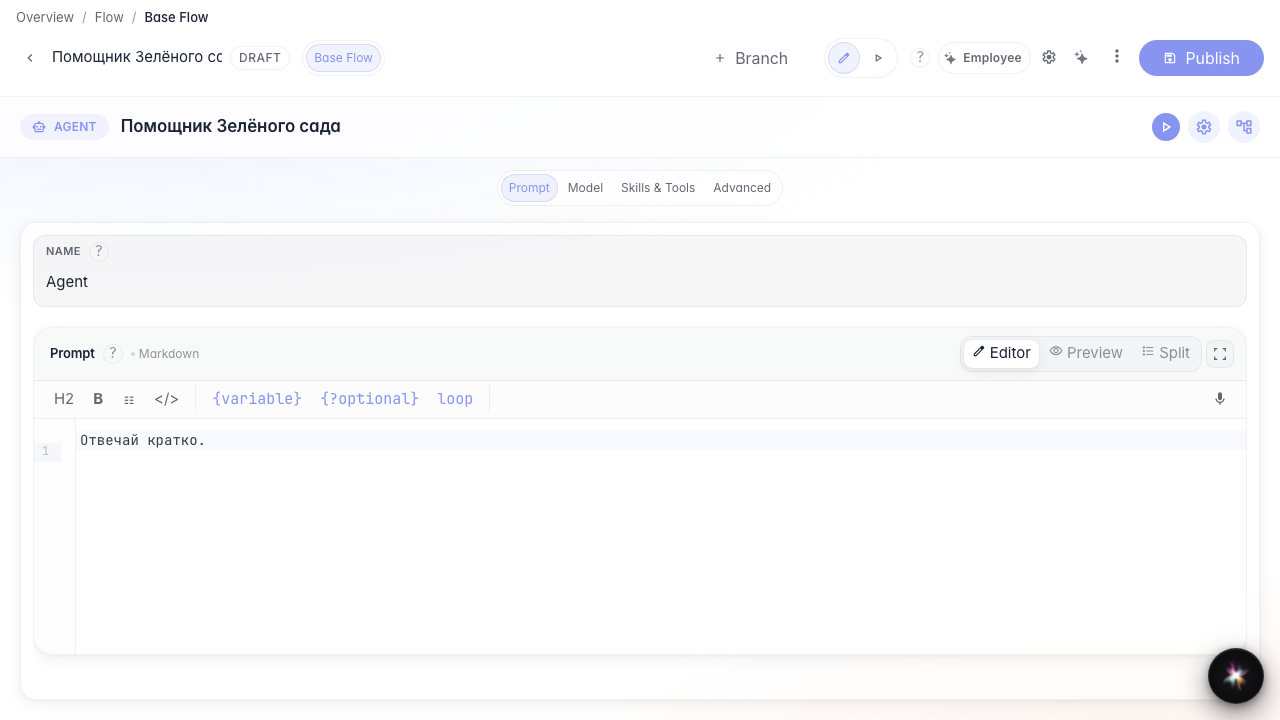
Step 2. Change the prompt in Studio
In the prompt section set the Green Garden instruction. The change goes into the agent draft immediately.

Step 3. Switch to the canvas graph
Click the canvas switch (graph icon). The canvas opens with the same node — useful when you add branches and more blocks.
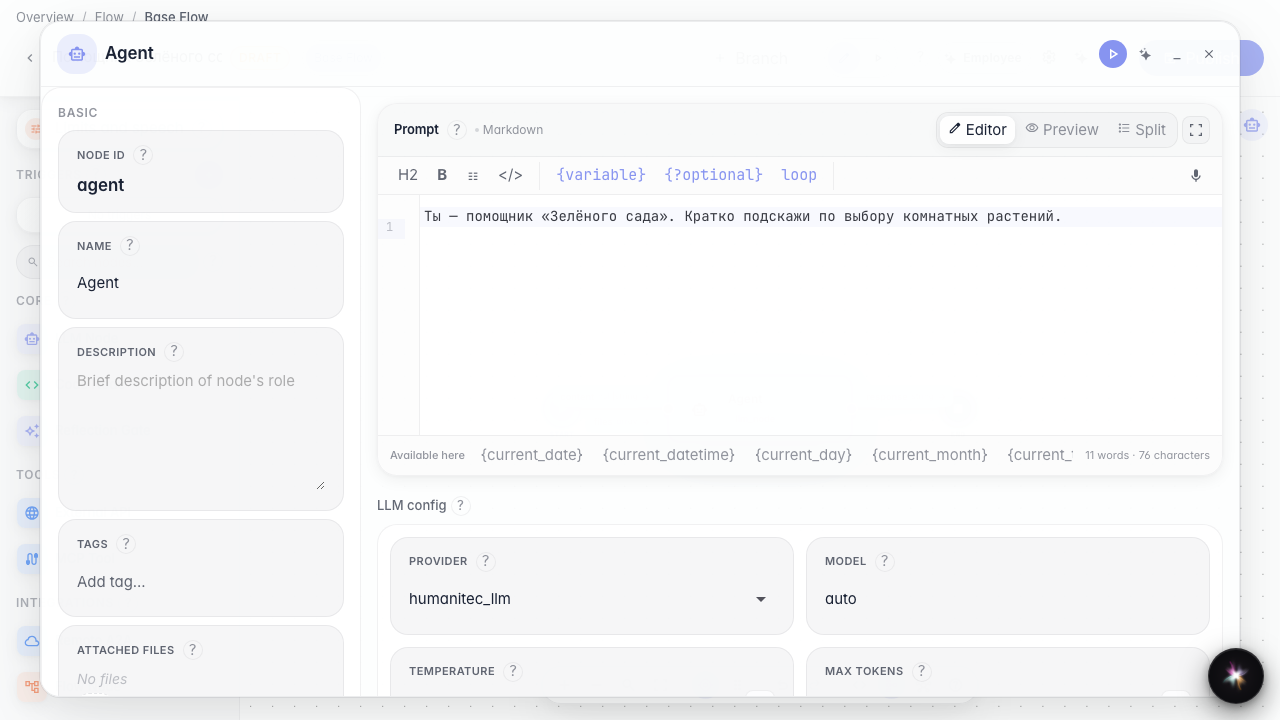
Step 4. Confirm the node is on the canvas
The same answer node is on the canvas. One agent — a different editor screen.
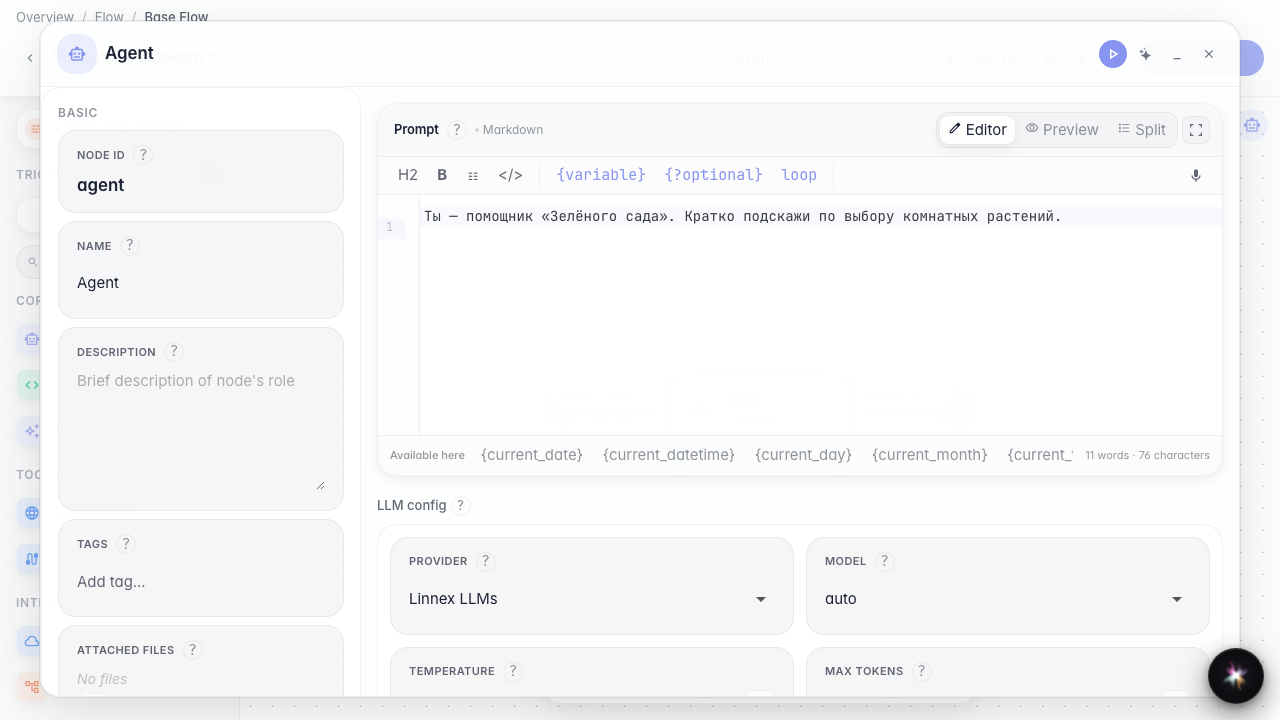
Step 5. Return to Studio and verify the change
Result demonstration. Back in Studio the Green Garden text is still there. Switching modes does not lose settings.
Summary. You can work in Studio and on the canvas and switch between them.