Shape agent answers: prompt and model
What for: this guide helps you set the agent's behavior and answer model, then change the setting and save it.
Problems it solves: the agent answers differently than the shop needs, and it's unclear where to change the instruction and the model.
Result: the agent answers politely on behalf of Green Garden, and changes are published and persist after reopening.
Step 1. Open the agent in the editor
Open the Green Garden Assistant in the editor. The answer node defines how the agent talks to the customer. A single-LLM agent also has Studio mode — covered in a separate guide.

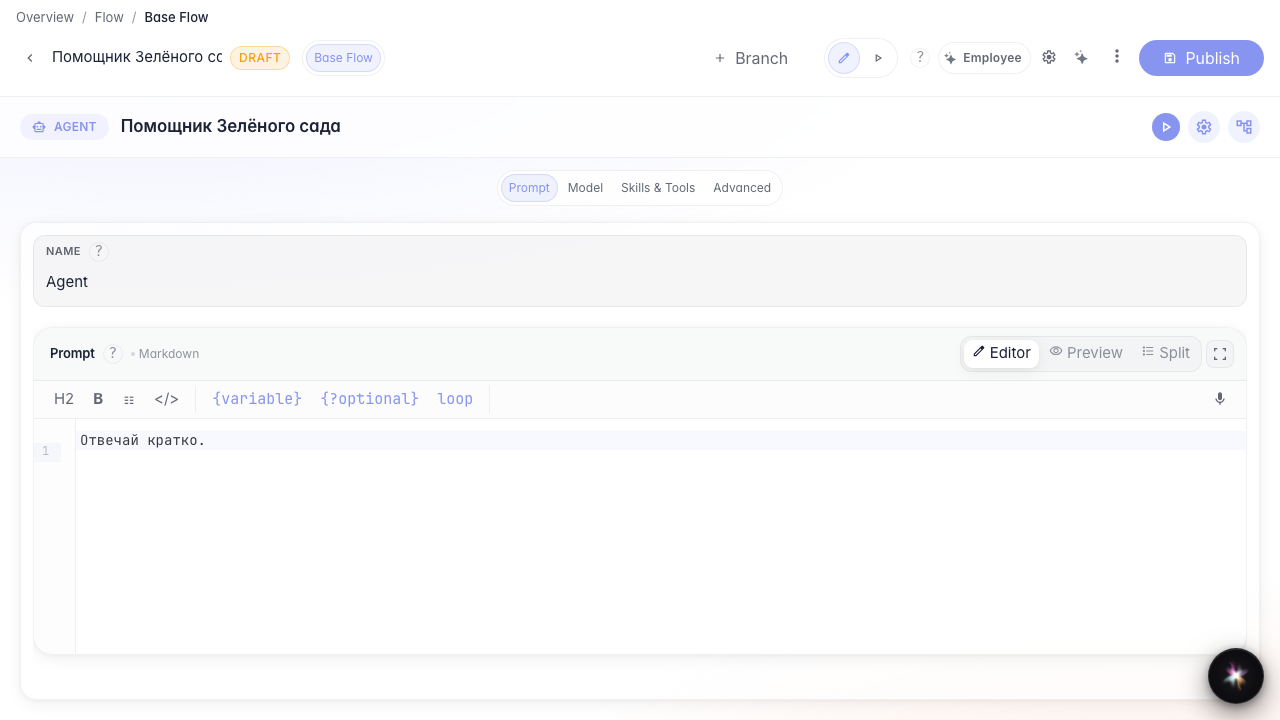
Step 2. Write the agent instruction
Type the instruction (prompt). You can insert variables such as the customer name in curly braces; the agent uses them in its reply.
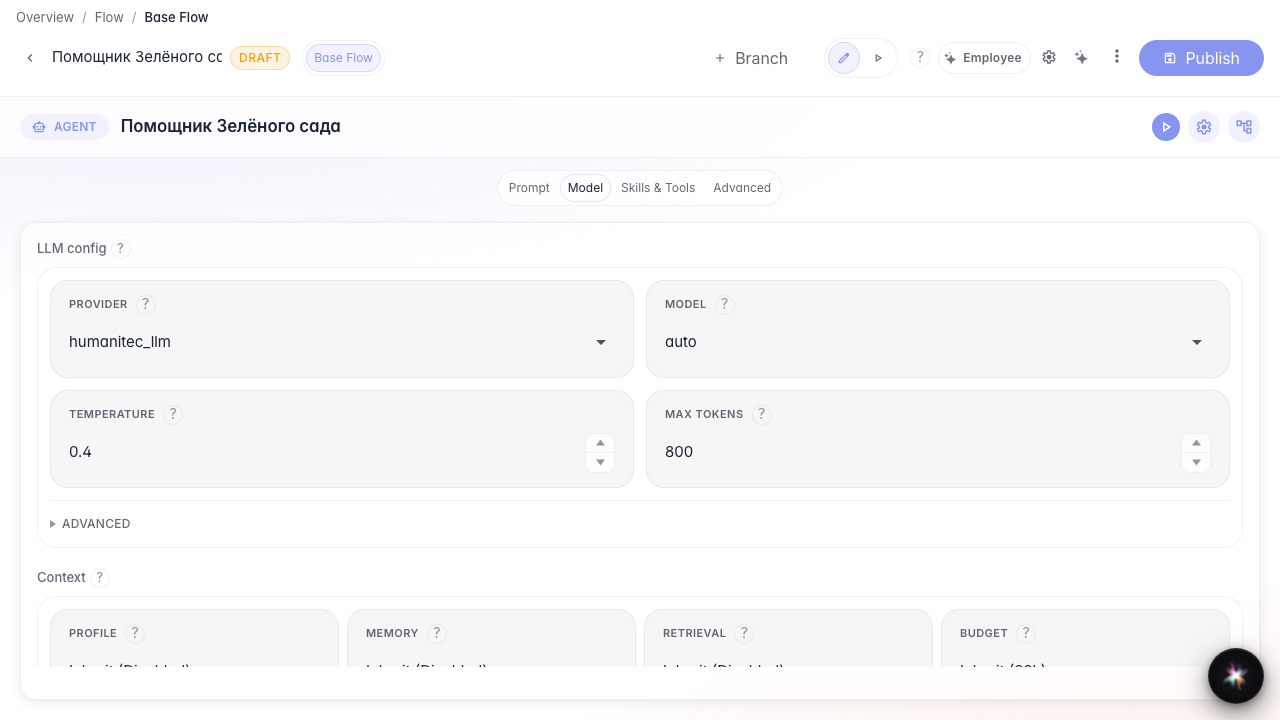
Step 3. Choose the model and reply limits
In the model block set the provider, model, temperature, and reply length limit. This controls tone and length without changing the graph.
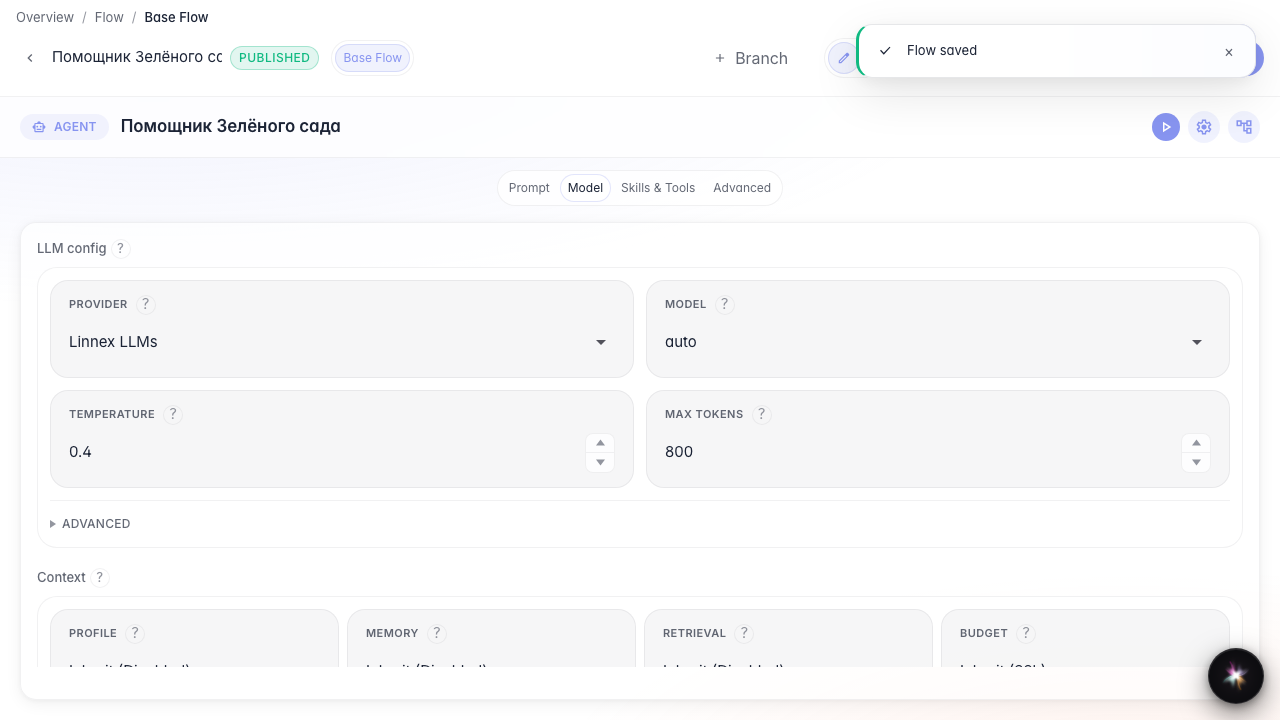
Step 4. Publish the draft
Click Publish. The draft becomes the live version, so the agent answers using the new instruction and model.
Step 5. Change the instruction and publish again
Extend the instruction (for example, always clarify delivery) and publish again. This is how you refine behavior over time.
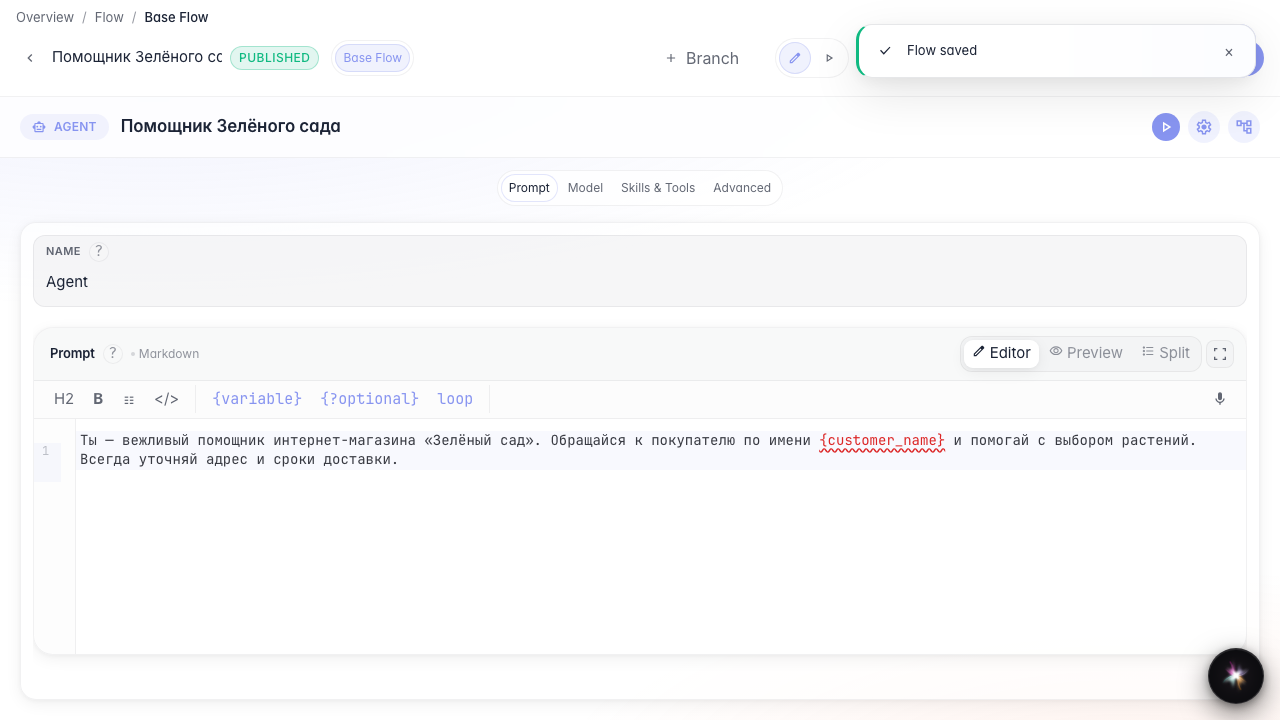
Step 6. Reopen the agent and verify settings
Result demonstration. Reopen the node — the updated instruction and model settings are still there, so the configuration was saved.
Summary. You can set the agent prompt and model and publish changes.
