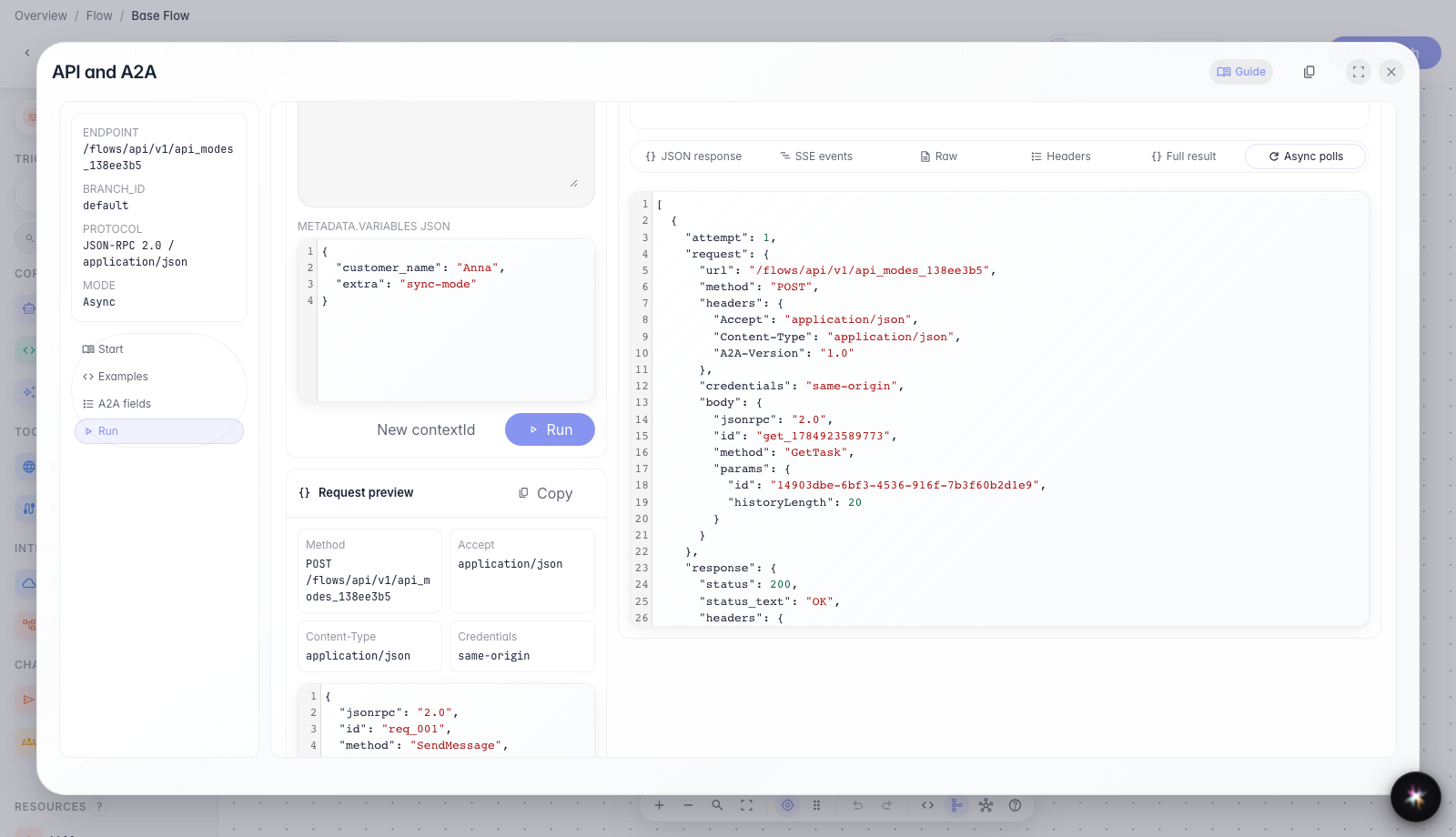
Sync and async calls through API Console
What for: this guide shows how to call an agent with one HTTP response or in the background.
Problems it solves: it is unclear when Sync is better than Streaming and how to wait for a long-running task result.
Result: you will verify both SendMessage modes in the same API Console modal.
Step 1. Open the Run tab
Switch to the Run tab. Here you can change mode, message text, and variables, then send a real request to the current agent.
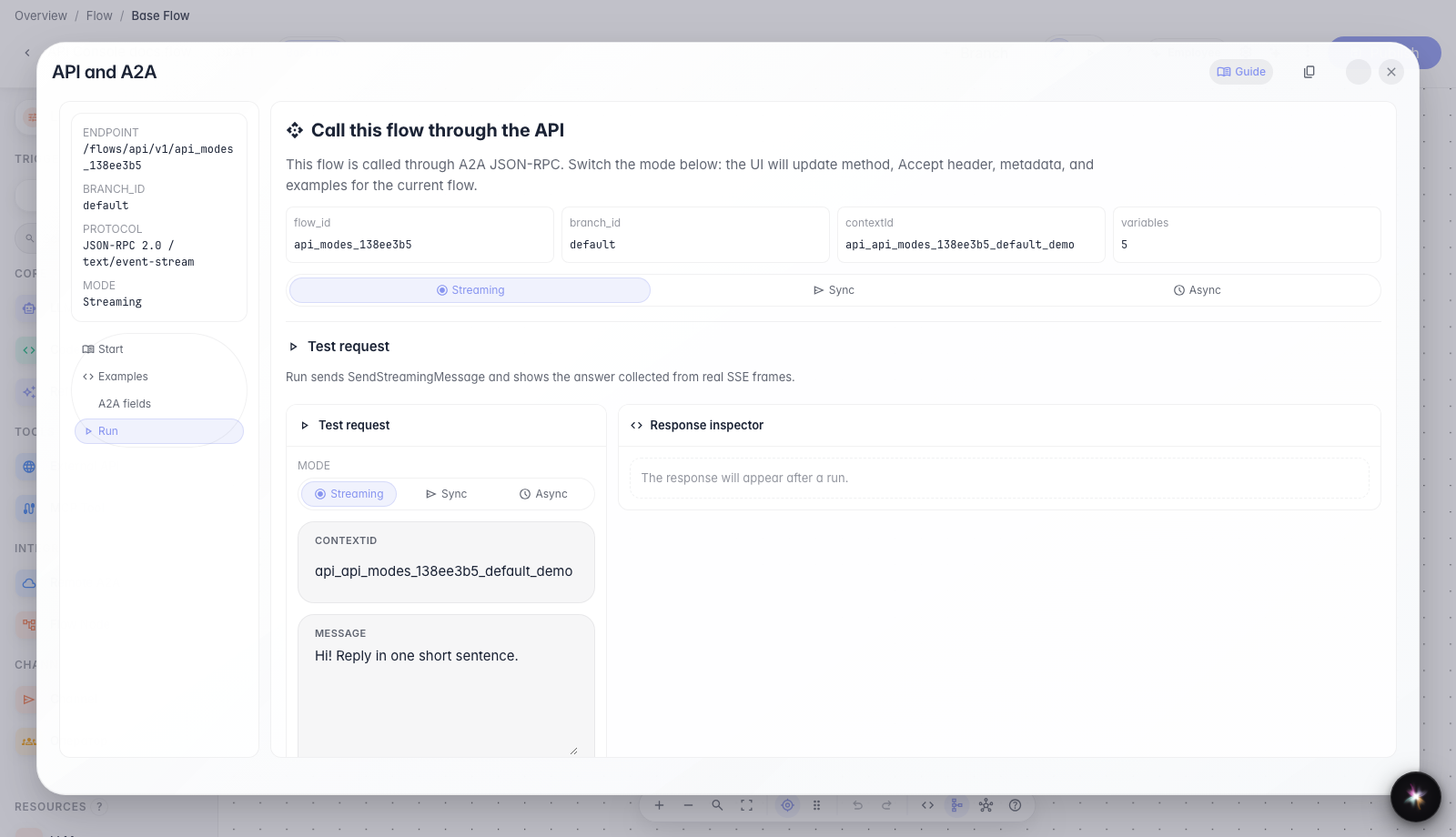
Step 2. Test sync mode
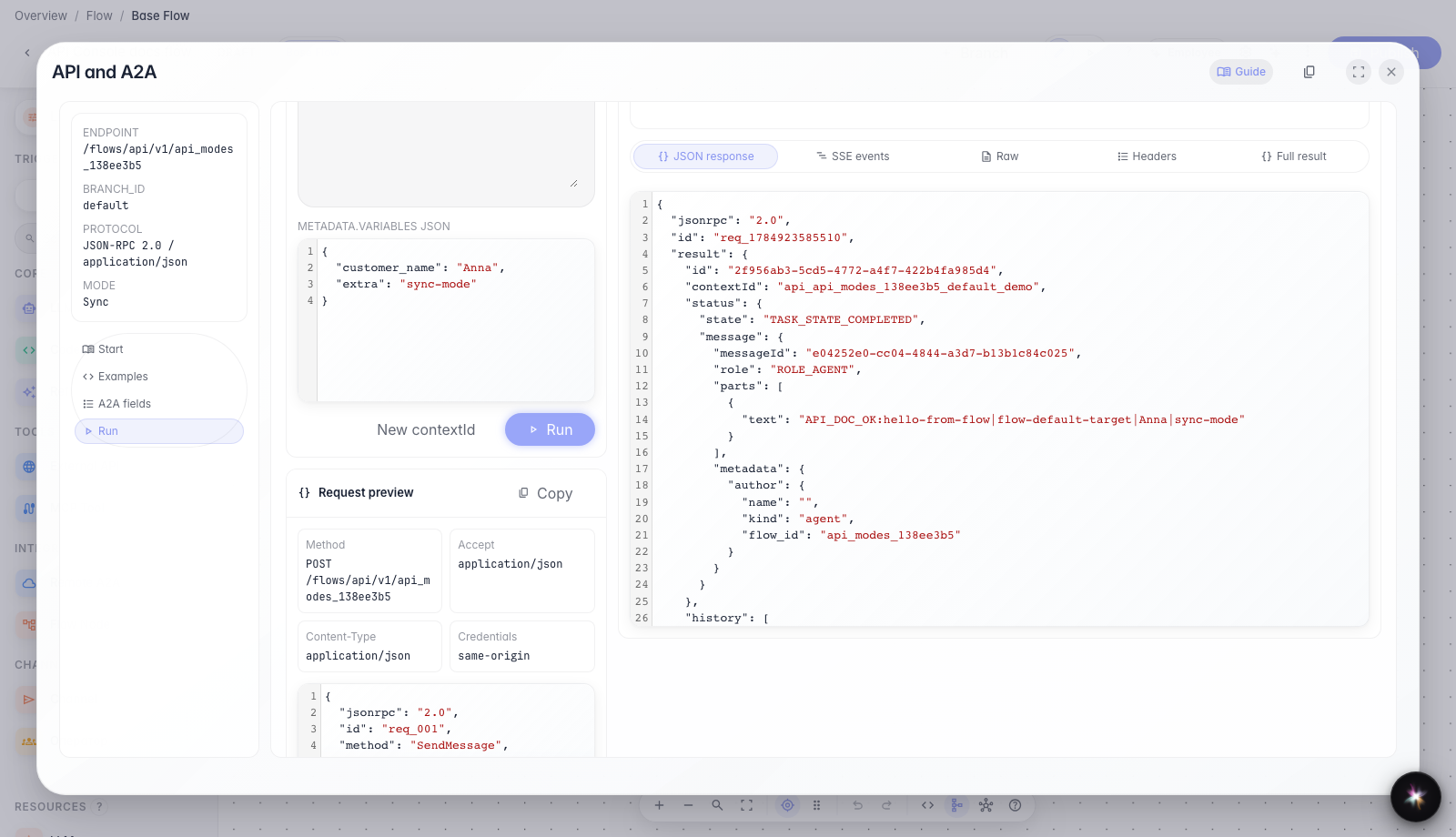
Sync mode sends one message and waits for a final JSON response without reading a stream of events. This is handy for short scenarios and backend-to-backend integrations.
Step 3. Switch to async mode
Choose Async mode. The API returns a task immediately and you fetch the final reply with a separate status poll.
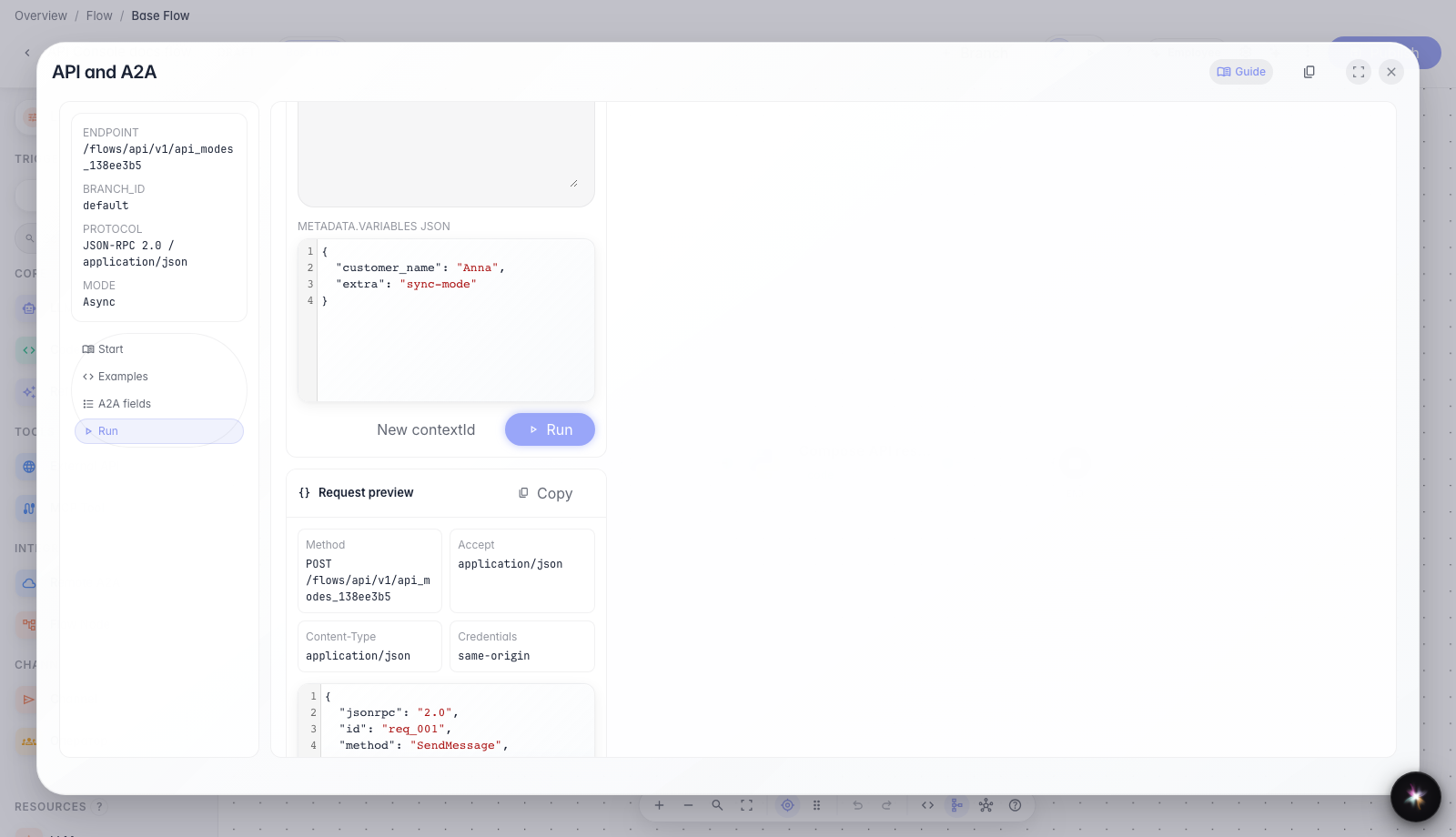
Step 4. Test async mode
Async mode quickly returns a task id, and you can fetch the result with separate status requests. The modal shows which status checks were already performed.
Result demonstration. In Async mode you see a quick task response and the final result after status polling — both call styles work.
Summary. You can now switch Sync and Async in API Console and understand when to use each mode.