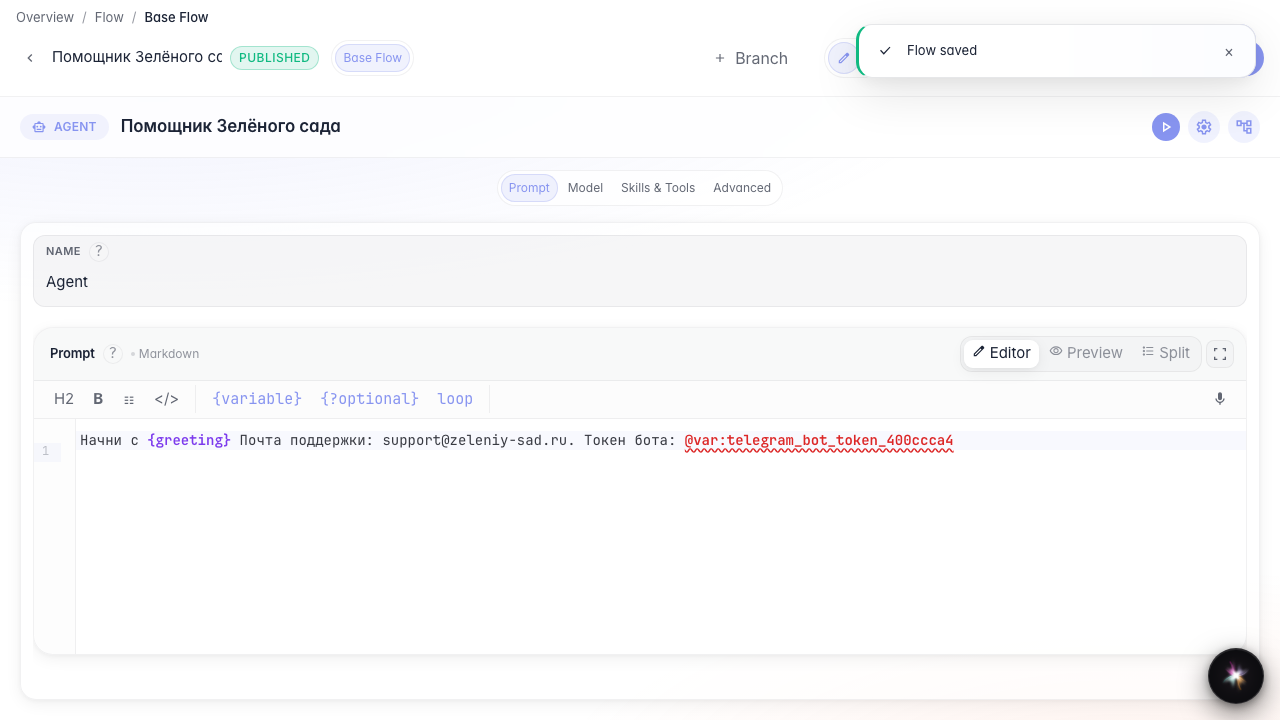
Agent parameters and secrets
What for: this guide moves greeting and contacts into variables and secrets into protected storage.
Problems it solves: editing support email in every prompt is tedious — variables and @var: simplify maintenance.
Result: variables are set and referenced in the agent instruction.
Step 1. Open agent variables
In the editor bottom bar click the variables icon. Here you define values available to the whole graph via {name} or @var:.
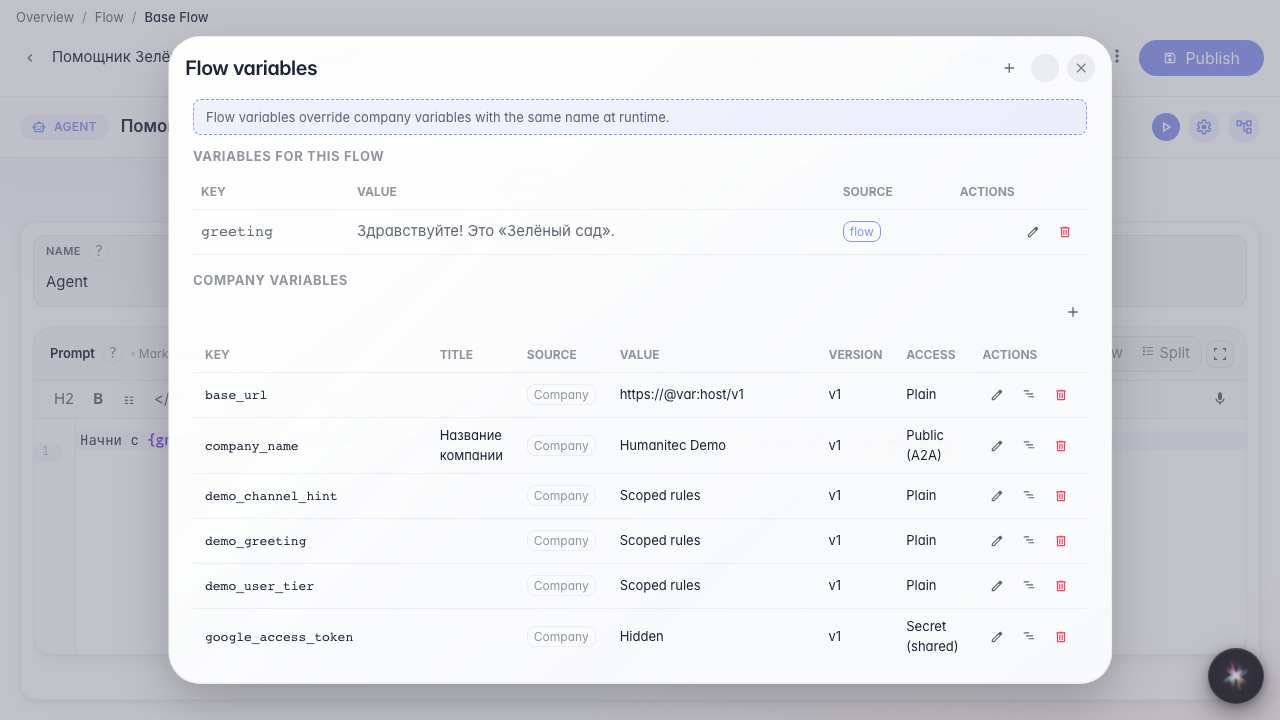
Step 2. Verify the variable in the list
The greeting variable is already in the modal table. This confirms the value is available to the whole graph before editing the prompt.
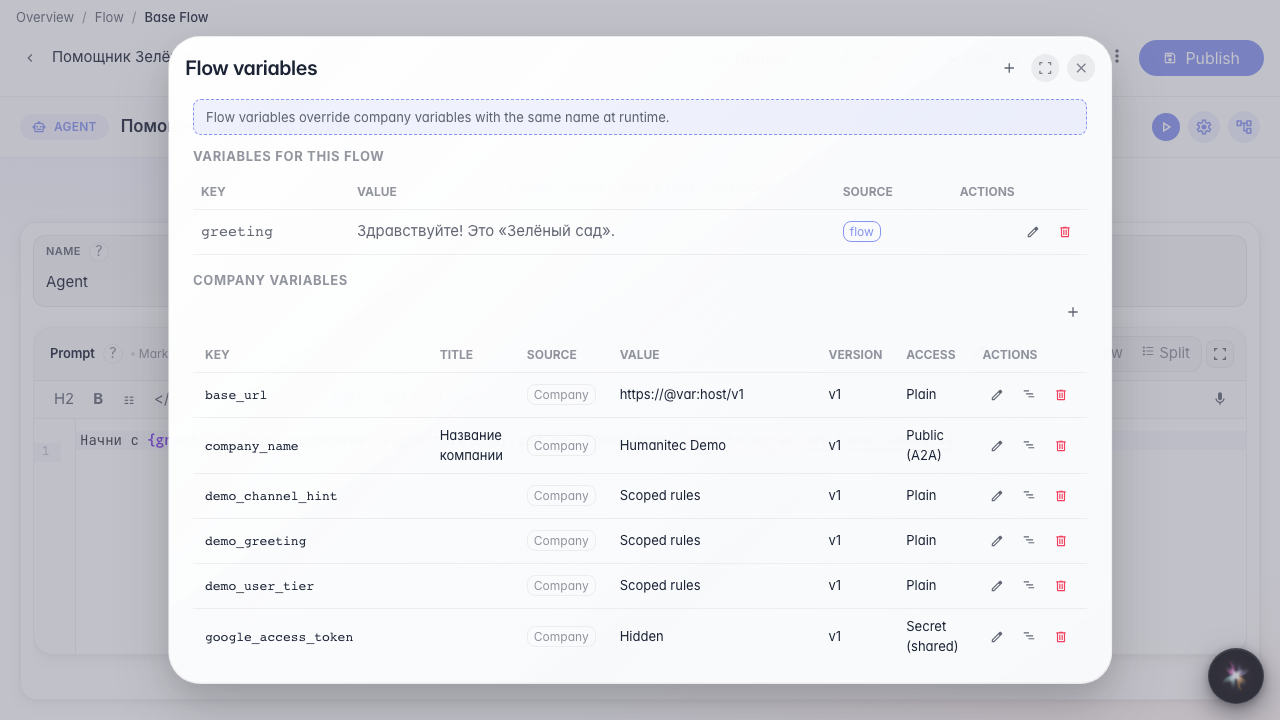
Step 3. Add variables and update the prompt
Create a greeting variable and put support address support@zeleniy-sad.ru and secret @var:telegram_bot_token_400ccca4 in the prompt. Contacts can change without rewriting the whole instruction.
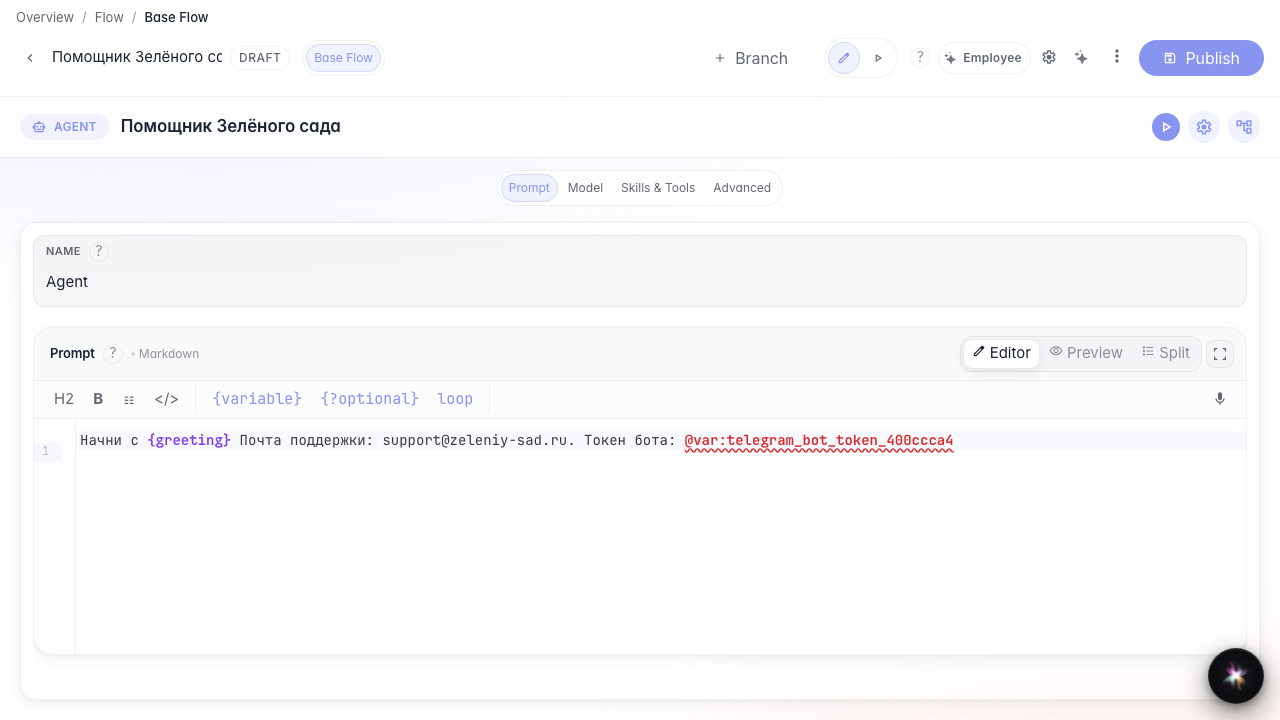
Step 4. Publish the agent with variables
Result demonstration. The prompt references variables and a secret — at runtime the current company values are substituted.
Summary. You can open flow variables, store secrets via @var:, and use them in the agent instruction.