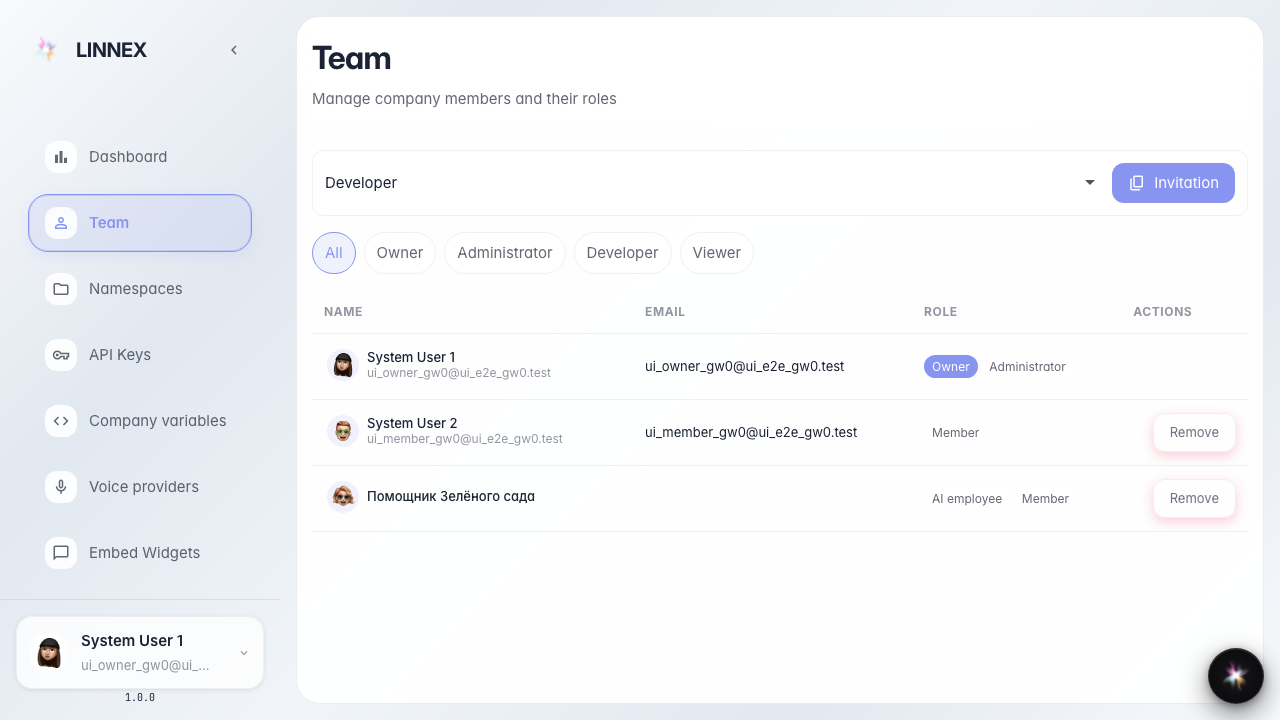
Enable the agent as an AI employee
What for: this guide shows how an agent appears on the company team as an AI employee.
Problems it solves: it is unclear where to see that a flow is a team member, not only a chat bot.
Result: the team page shows an AI employee badge for the Green Garden assistant.
Step 1. Open the employee agent in the editor
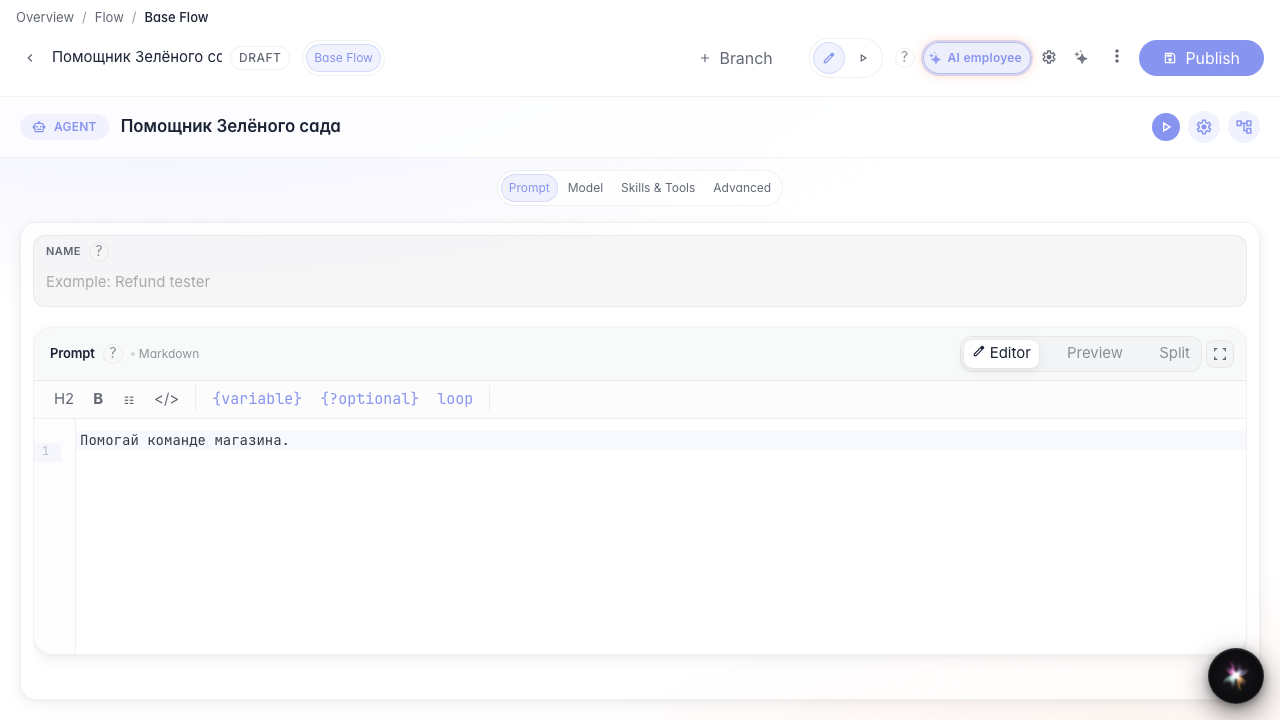
Open the Green Garden Assistant in the editor. The header shows an AI employee chip when the agent is enabled as a company employee.
Step 2. Open AI employee settings
Click the header chip. The settings menu opens: enable employee, display name, and human curators.

Step 3. Confirm the employee badge in the flow list
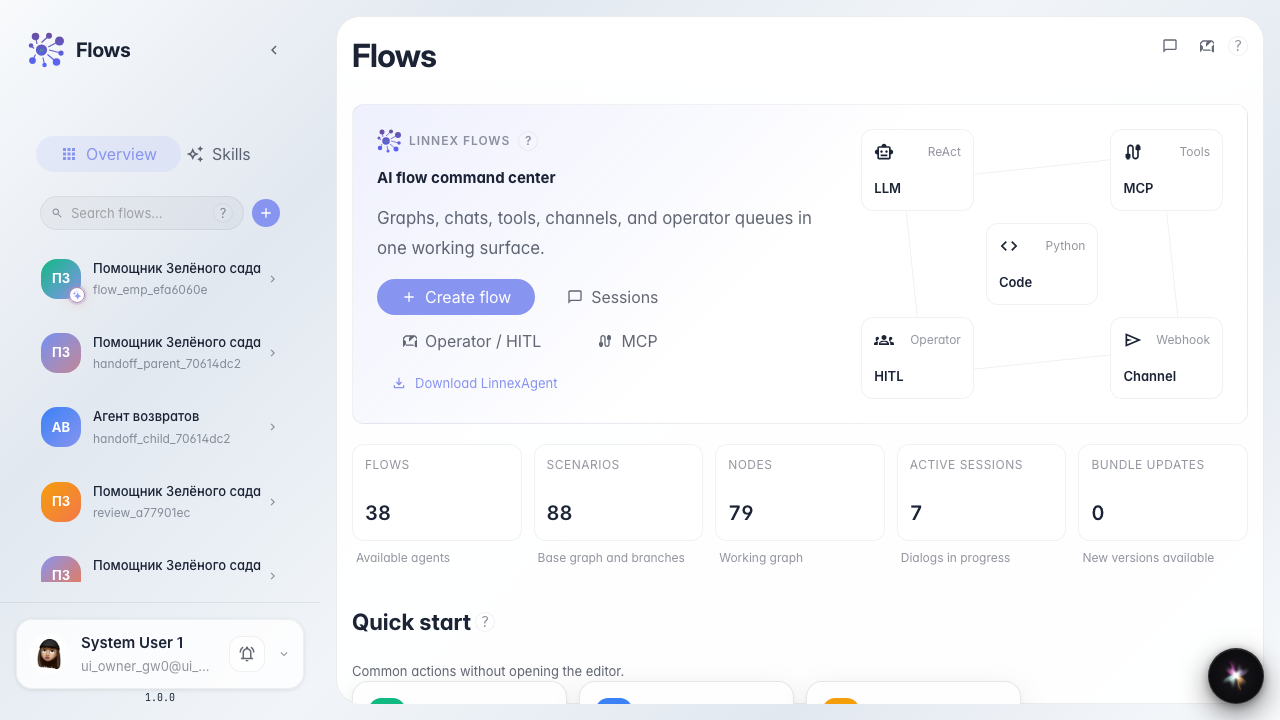
In the sidebar the agent card shows an AI badge on the avatar — the flow is an employee.
Step 4. Go to the team section
Open the company team page. People and AI employees are listed here.
Step 5. Find the AI employee in the list
In the team list find the assistant entry. An AI employee has its own member card.
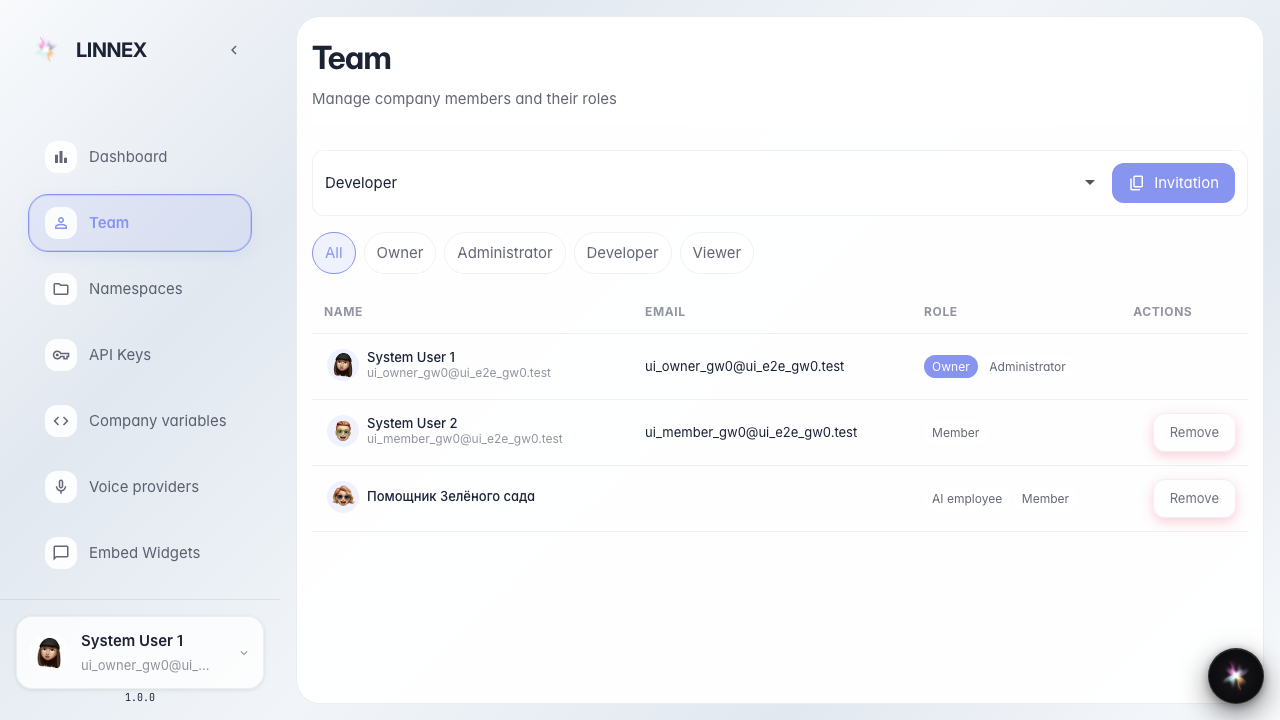
Step 6. Confirm the AI employee badge
Result demonstration. Next to the member you see the AI employee badge — the agent is on the team.
Summary. You understand how an employee agent appears on the team page.