Test the agent in chat
What for: this guide helps you test the Green Garden Assistant the same way a customer would in a dialog.
Problems it solves: it is unclear where to open the agent chat and how to confirm it answers a real question.
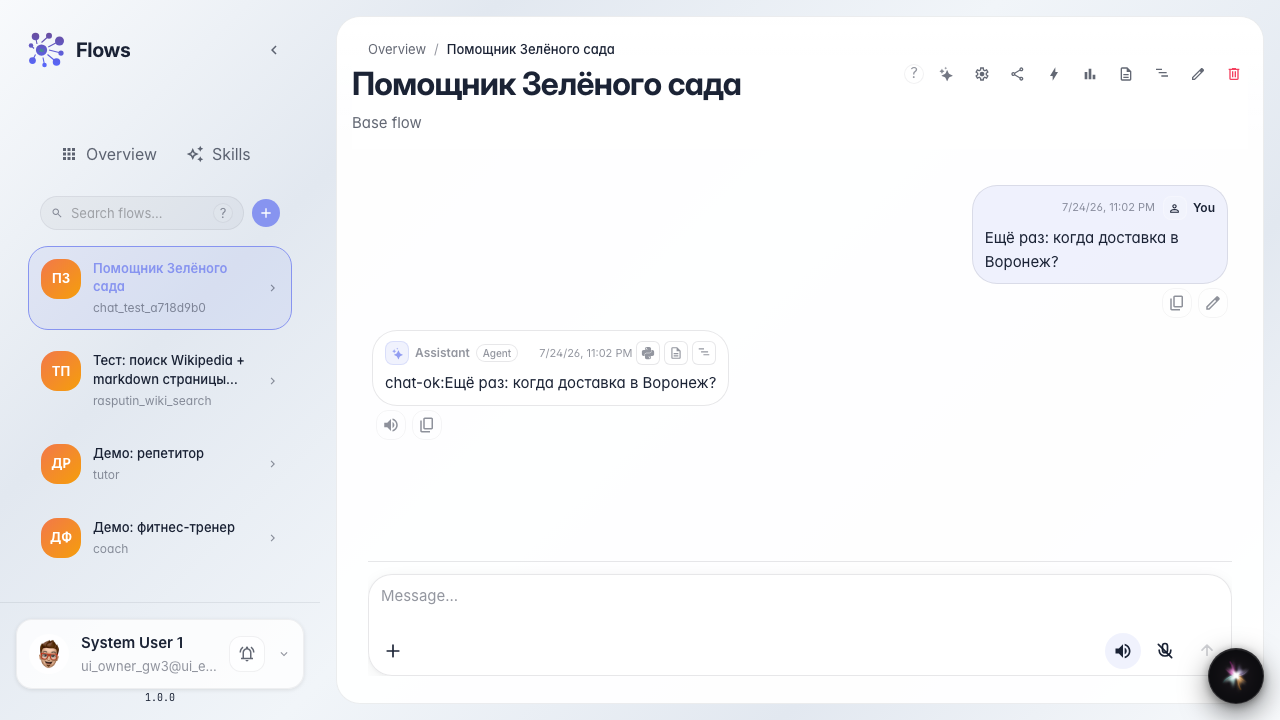
Result: the agent replied to a delivery question in the chat feed.
Step 1. Open the agent chat
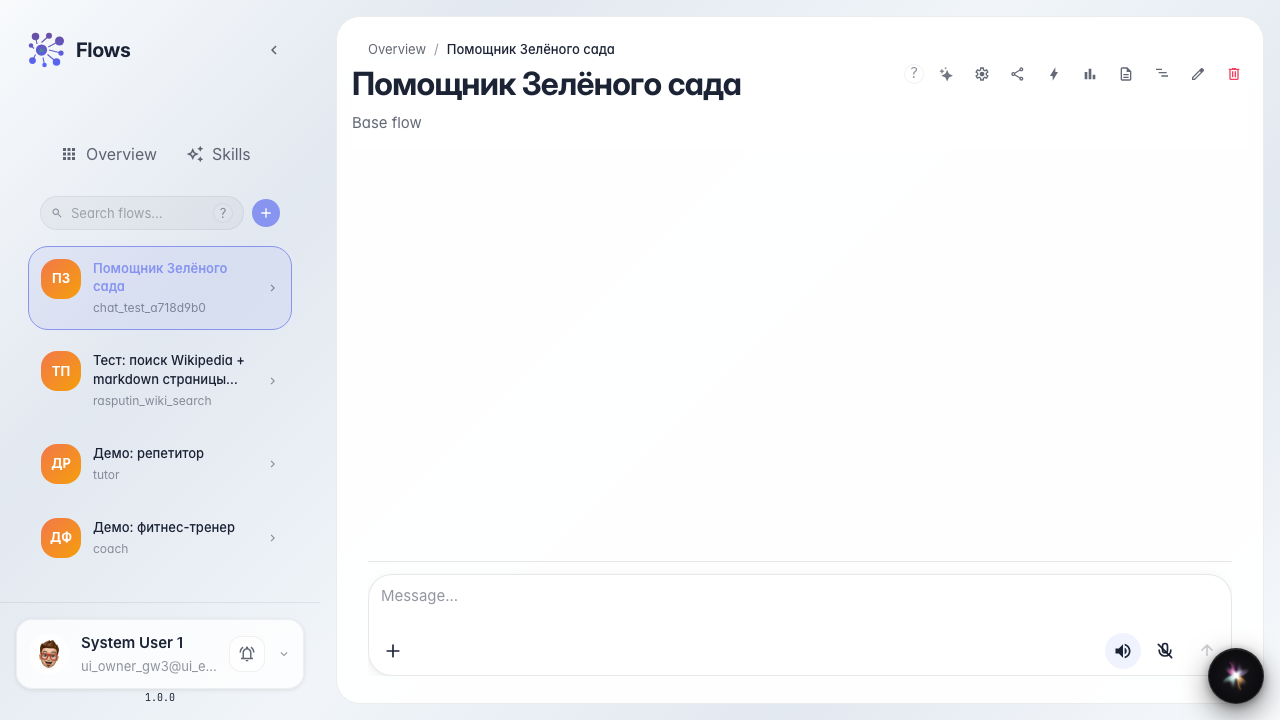
Open the Green Garden Assistant chat. The message feed is in the center and the input field is at the bottom. This is the same interface a customer sees.

Step 2. Ask about delivery
Type a customer question — for example about delivery to your city — and send it. This tests the agent on a typical Green Garden store request.
Step 3. Wait for the reply in the feed
Wait until the reply appears in the chat feed. A streaming reply shows the agent is processing the message in real time.
Step 4. Start a new conversation
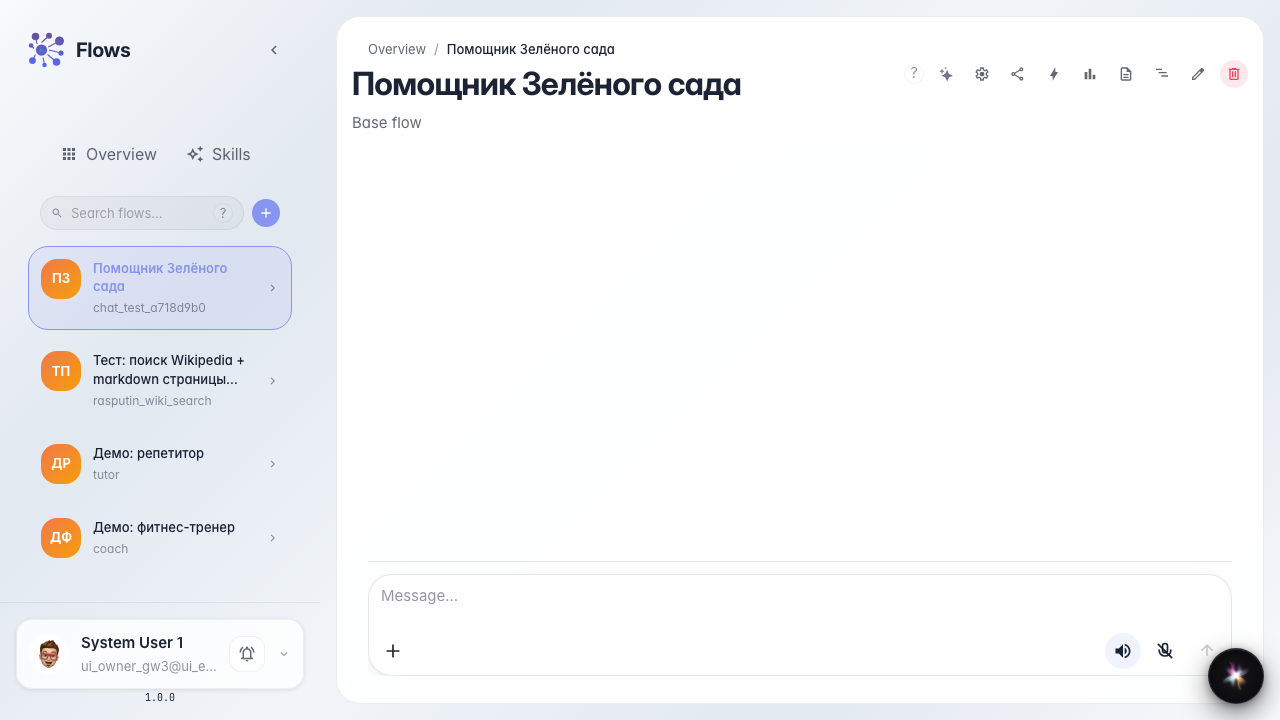
Clear the feed or start a new chat — this checks a fresh-start scenario, like a customer after a previous request. Skill load chips in the dialog are covered in a separate guide.
Step 5. Verify the meaningful reply
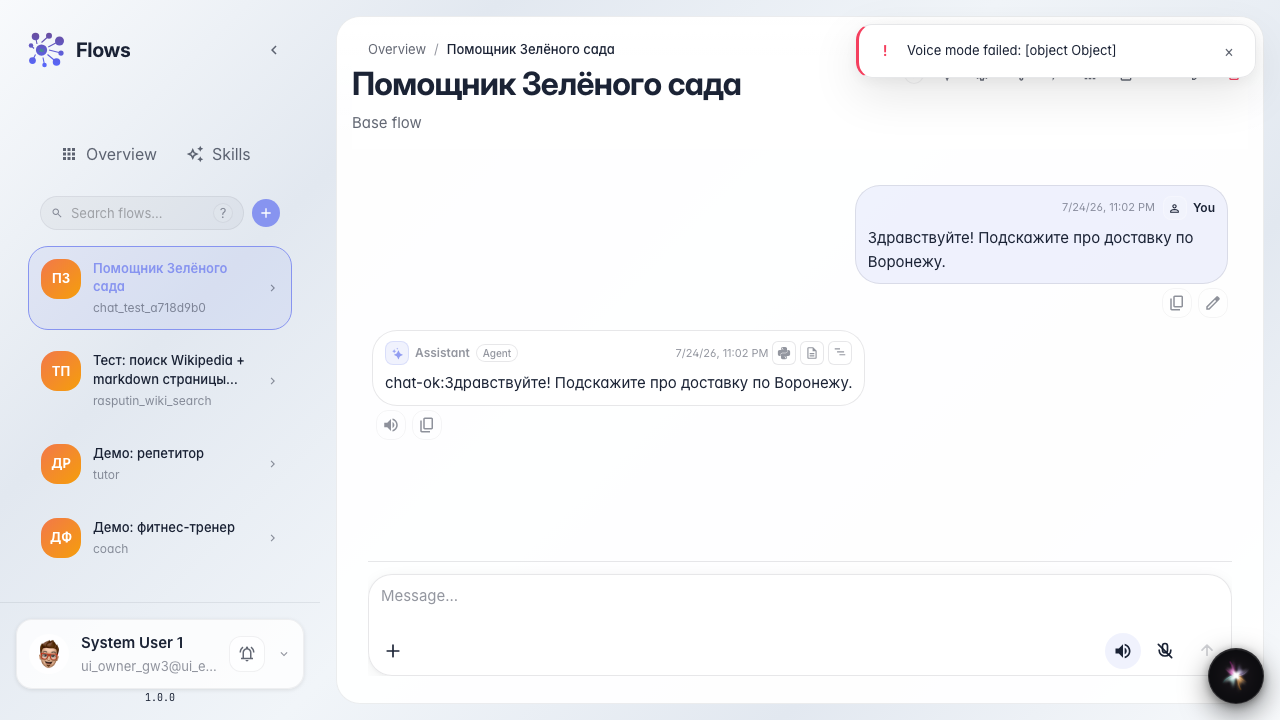
Result demonstration. After the new message an agent reply appears again — the Green Garden Assistant dialog works.
Summary. You can open the Green Garden agent chat, send a question, and start a new conversation.