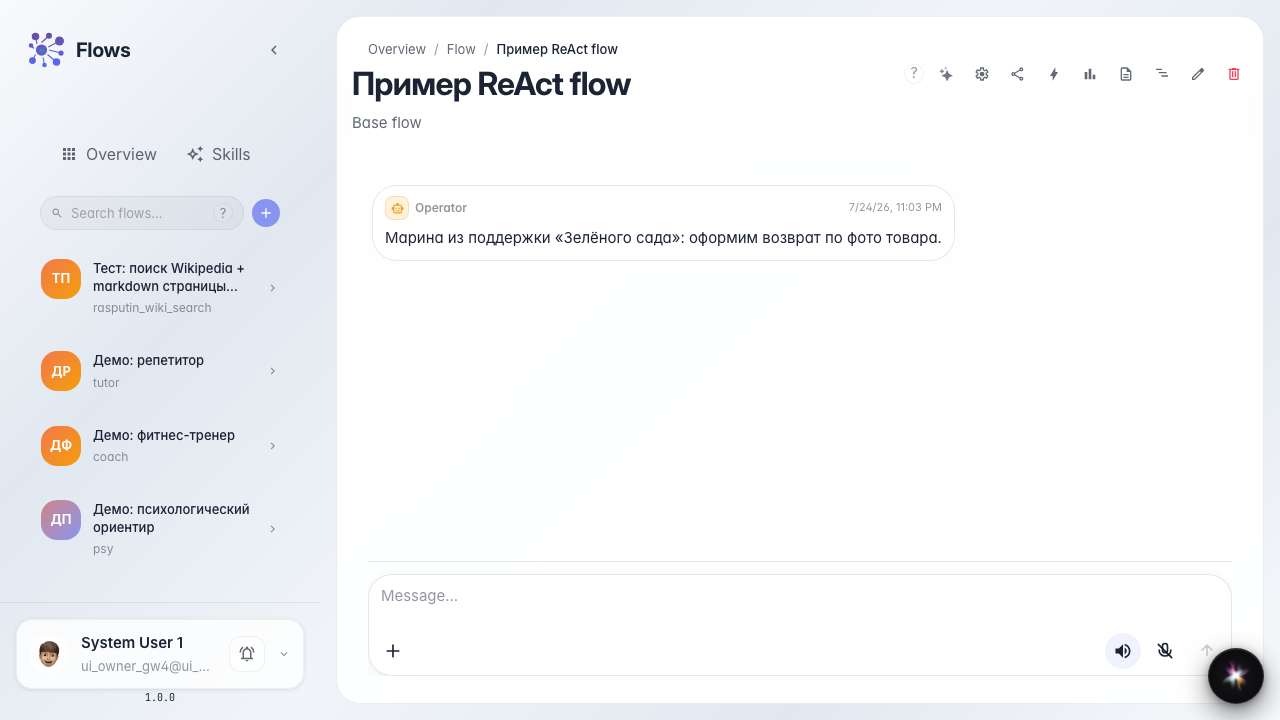
What the customer sees while waiting for an operator
What for: this guide shows chat behavior from the customer's perspective when the agent handed the question to operator Marina.
Problems it solves: it is unclear whether the chat froze, whether you can keep typing, and how a human reply will arrive.
Result: the customer sees waiting state, a task badge, and the operator's answer in the chat feed.
Step 1. Open the agent chat as a customer
Open the Green Garden Assistant chat in the demo branch with operator handoff. Here the customer asks questions the same way as in a real store.
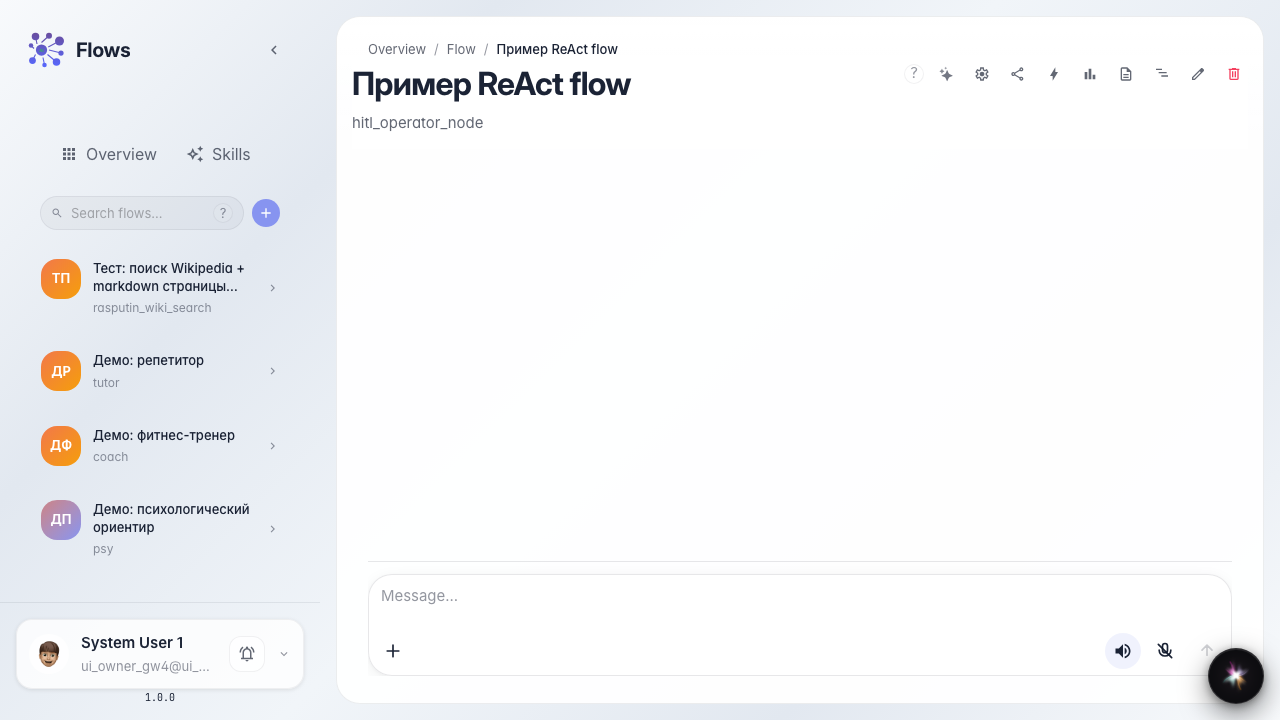
Step 2. Wait for operator handoff
Send a complex question. A waiting banner and task badge appear; the chat did not freeze but waits for a reply from the Customer Support queue.
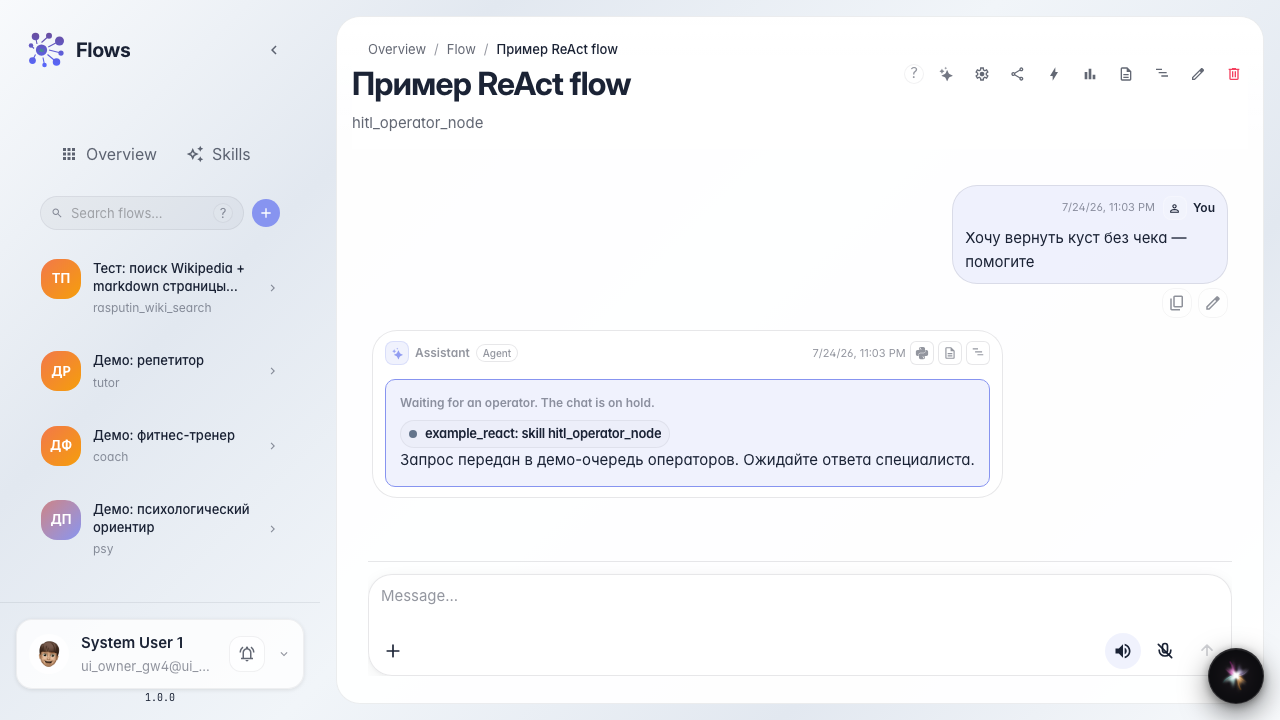
Step 3. Check the waiting message for the customer
Make sure the chat shows a clear waiting message — the customer understands the request was passed to a live specialist and the reply will appear here.
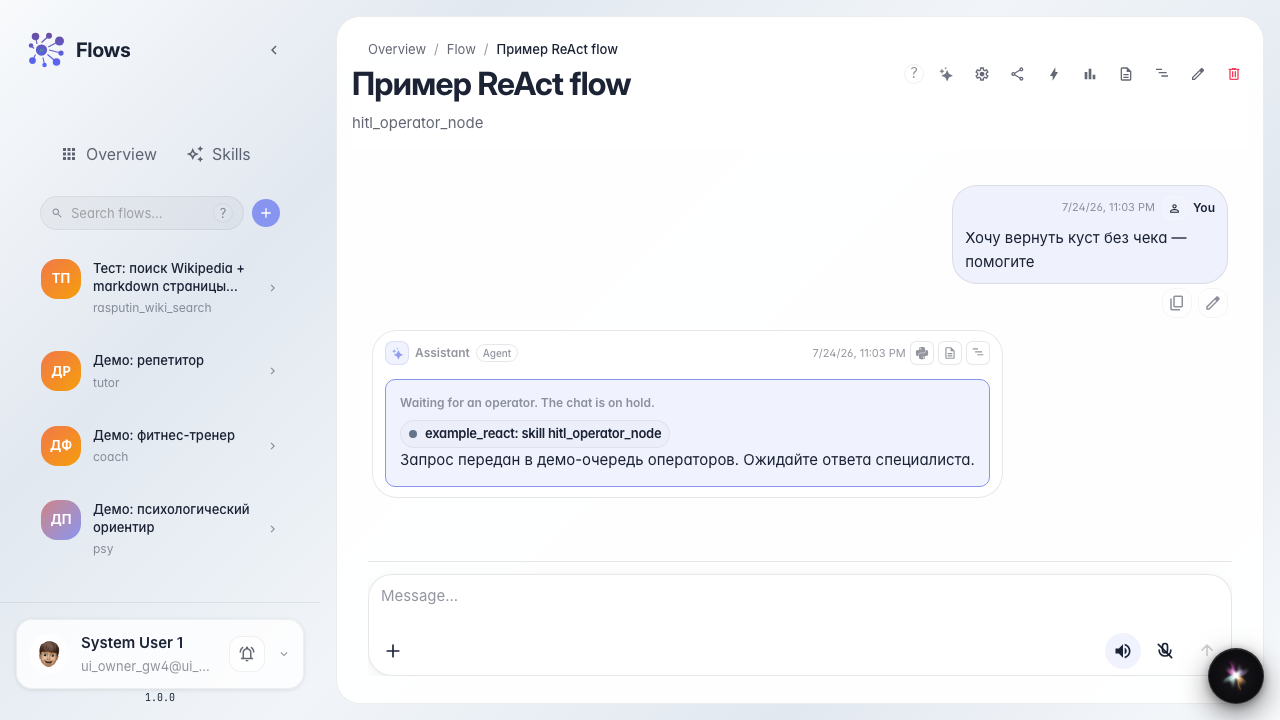
Step 4. Receive the operator reply in chat
Result demonstration. After operator Marina replies, the waiting banner disappears and her text appears in the chat feed; the customer sees a human answer and can continue the dialog.
Summary. You now understand what the customer sees during operator handoff and how a human reply returns to the agent chat.